Projects and Leads
You → Us
Projects
Follow work you referred to us. We manage the project; you can see its status, dates, progress, and shared files.
Us → You
Leads
Handle customers we referred to your company. Review the work requested, contact the customer, and keep us updated.
Projects opens first after sign-in. Switch between Projects and Leads in the portal navigation. You only see work shared with your company.
Sign in with an email code
- Open Partner sign-in.
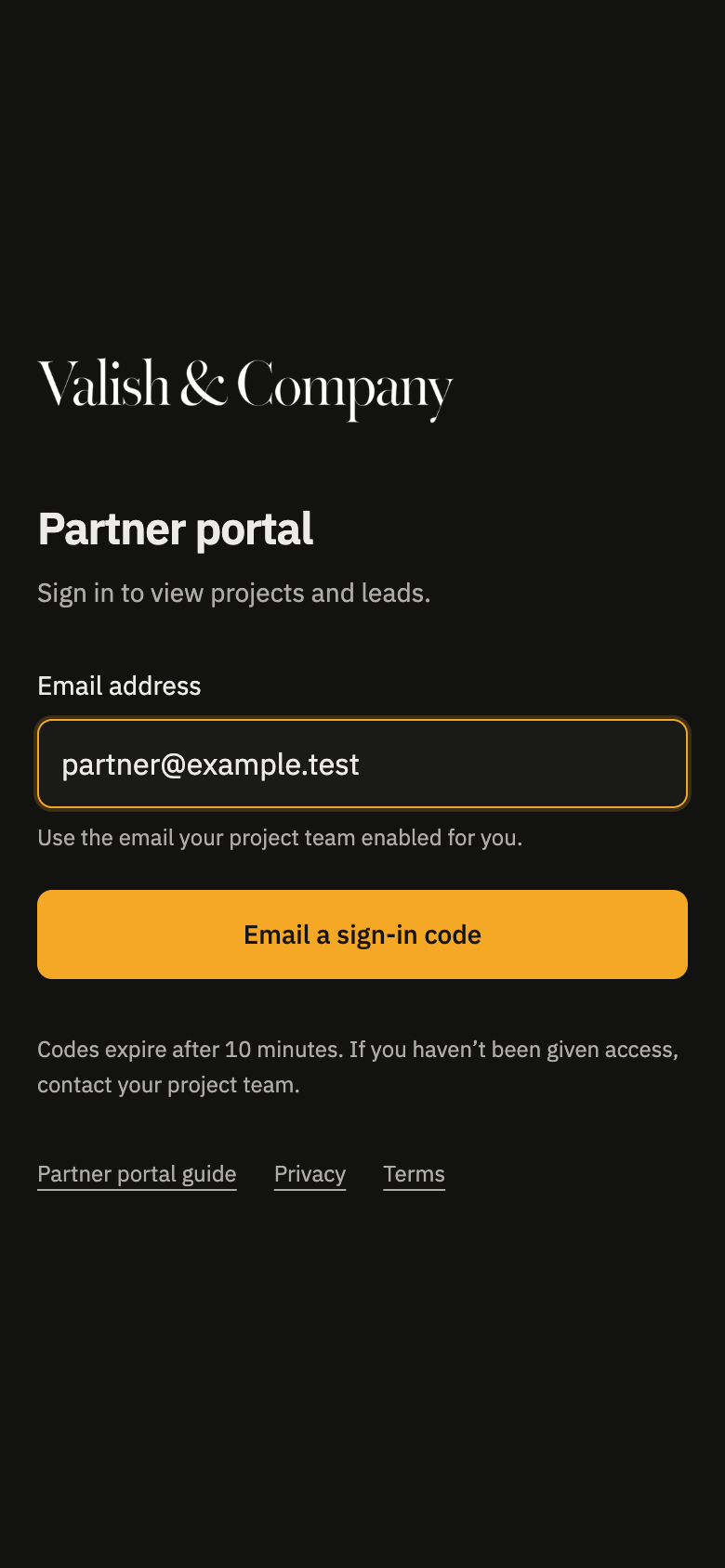
- Enter the email address your project team enabled and choose Email a sign-in code.
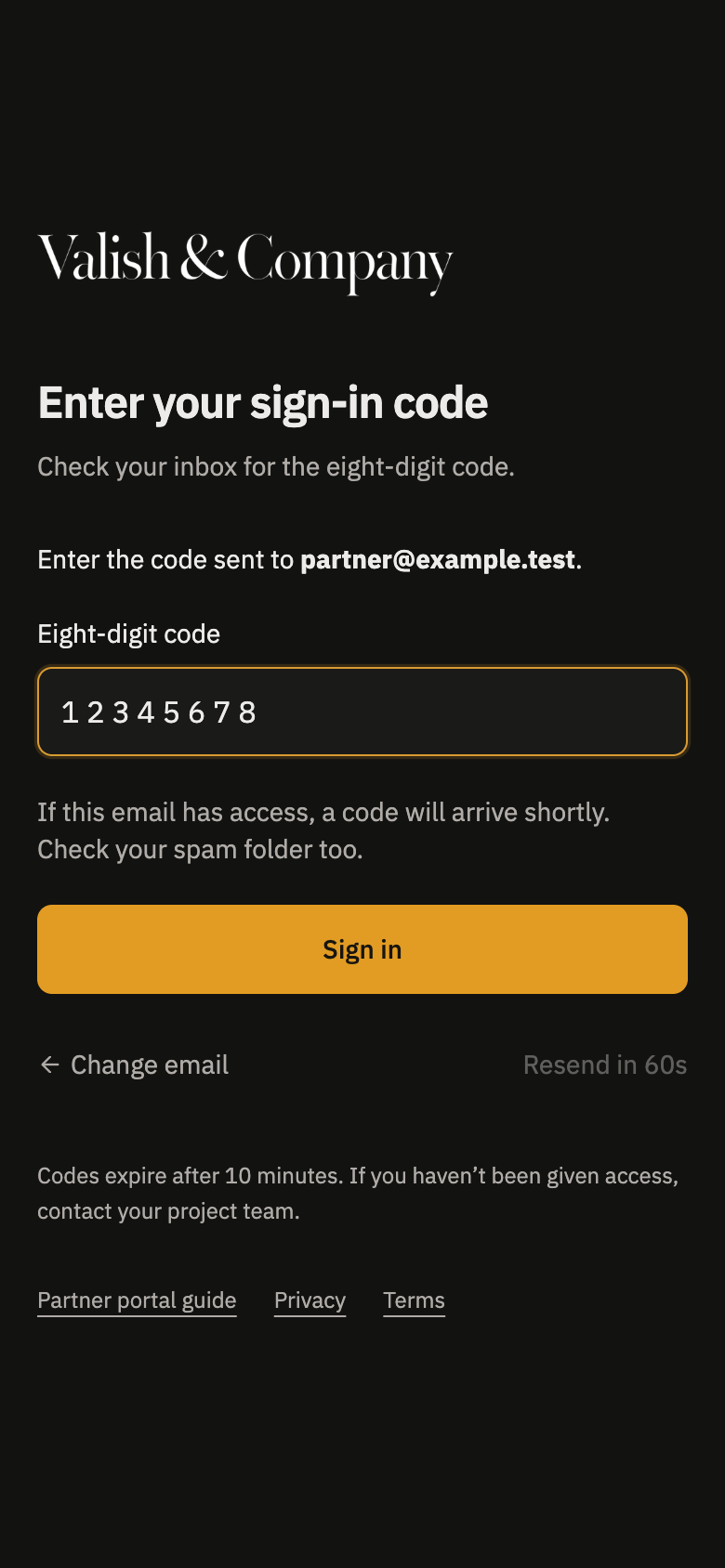
- Check your inbox for the eight-digit code, enter it, and choose Sign in.
Codes expire after 10 minutes. You can request another after one minute. Check your spam folder if a code has not arrived. There is no password to create and no public registration. If you need access or want to change the enabled email, contact your project team.
Enter your enabled email
Use the email your project team has on file for portal access.
Enter the eight-digit code
The code shown here is an example.
Keep sign-in codes private. Use Sign out when you finish on a shared device. If you followed a link to a particular portal page, sign-in returns you to that page.
Follow a project
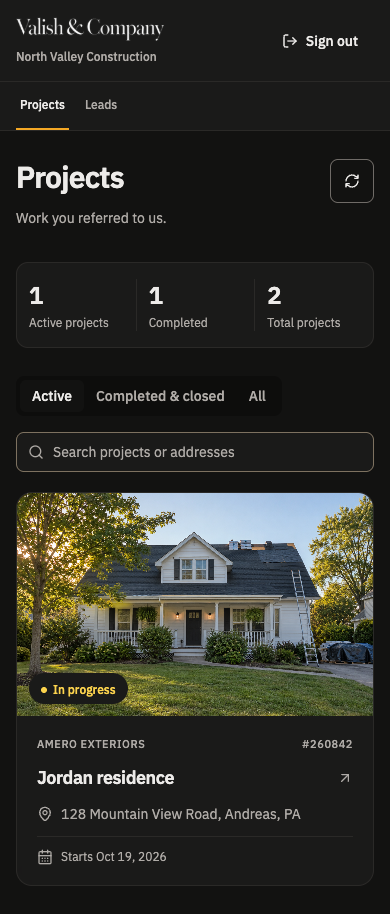
Open Projects to see work you referred to us and any other projects your team has shared with you. Search by project or address, or filter by Active, Completed & closed, or All.
Your Projects list
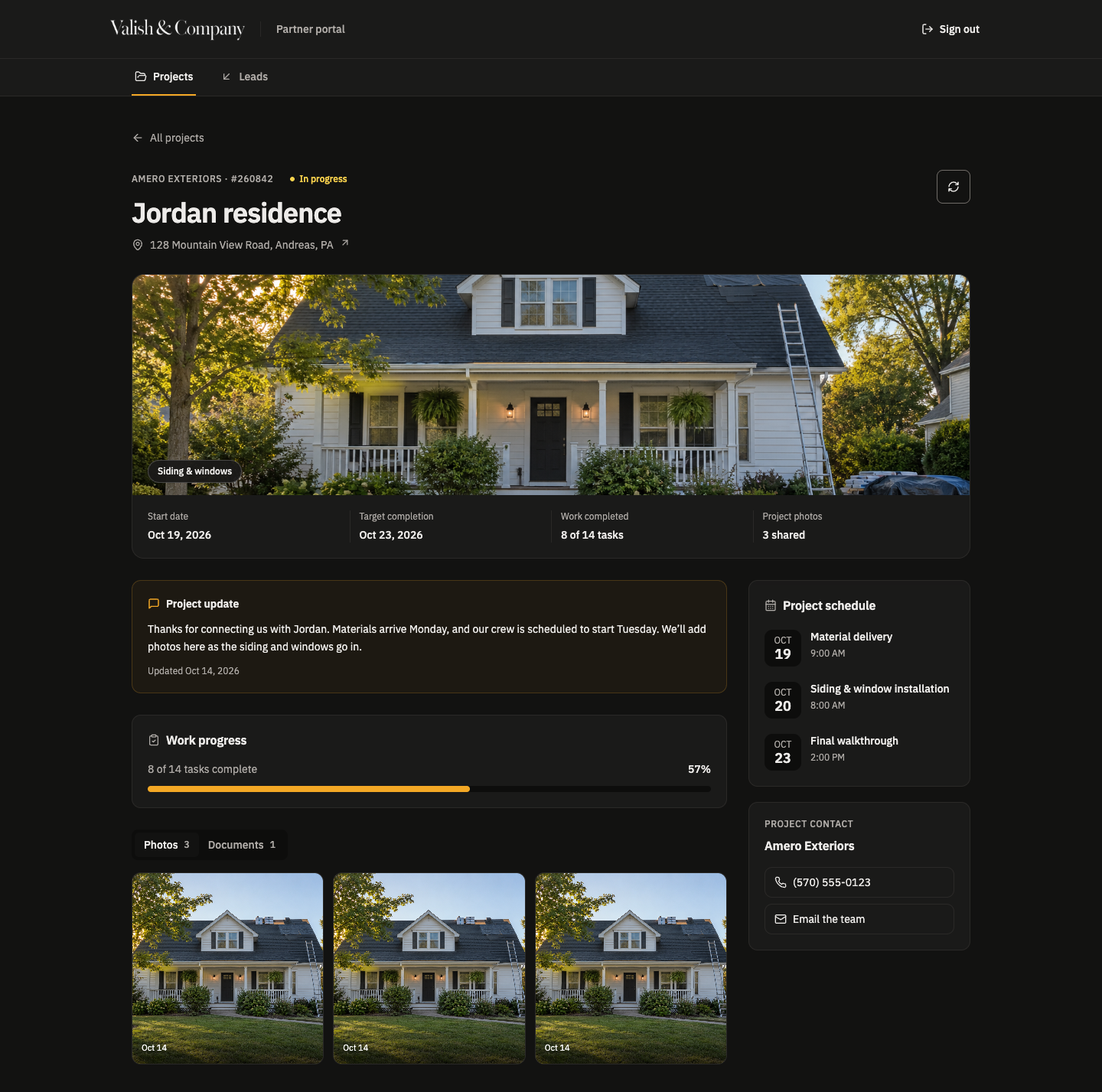
Open a project to see its latest shared details.
What you can see
- Project status, job number, type, and location.
- Start date and target completion date.
- Task completion and overall progress.
- Your project team’s message to you.
- Scheduled visits and work dates.
- Shared photos, videos, and documents.
- Contact details for the project company.
Project details are read-only. Contact the project team for corrections or questions about the work.
Project details
Open a photo in the viewer or switch to Documents for shared files.
A referral may still be an inquiry before it becomes a project. It appears here once our team creates the project and shares access. It will not appear under Leads, which contains work we send to you.
Handle a lead referred to you
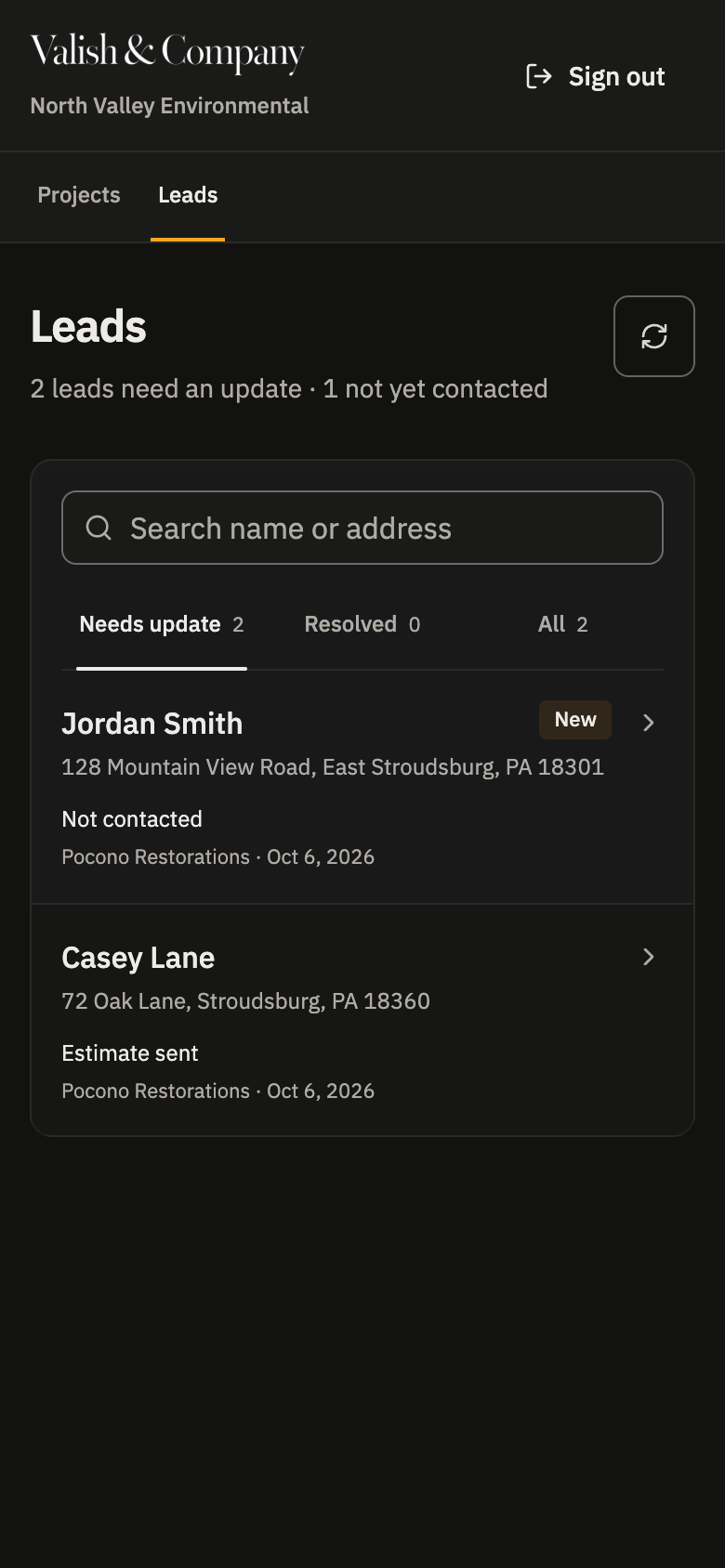
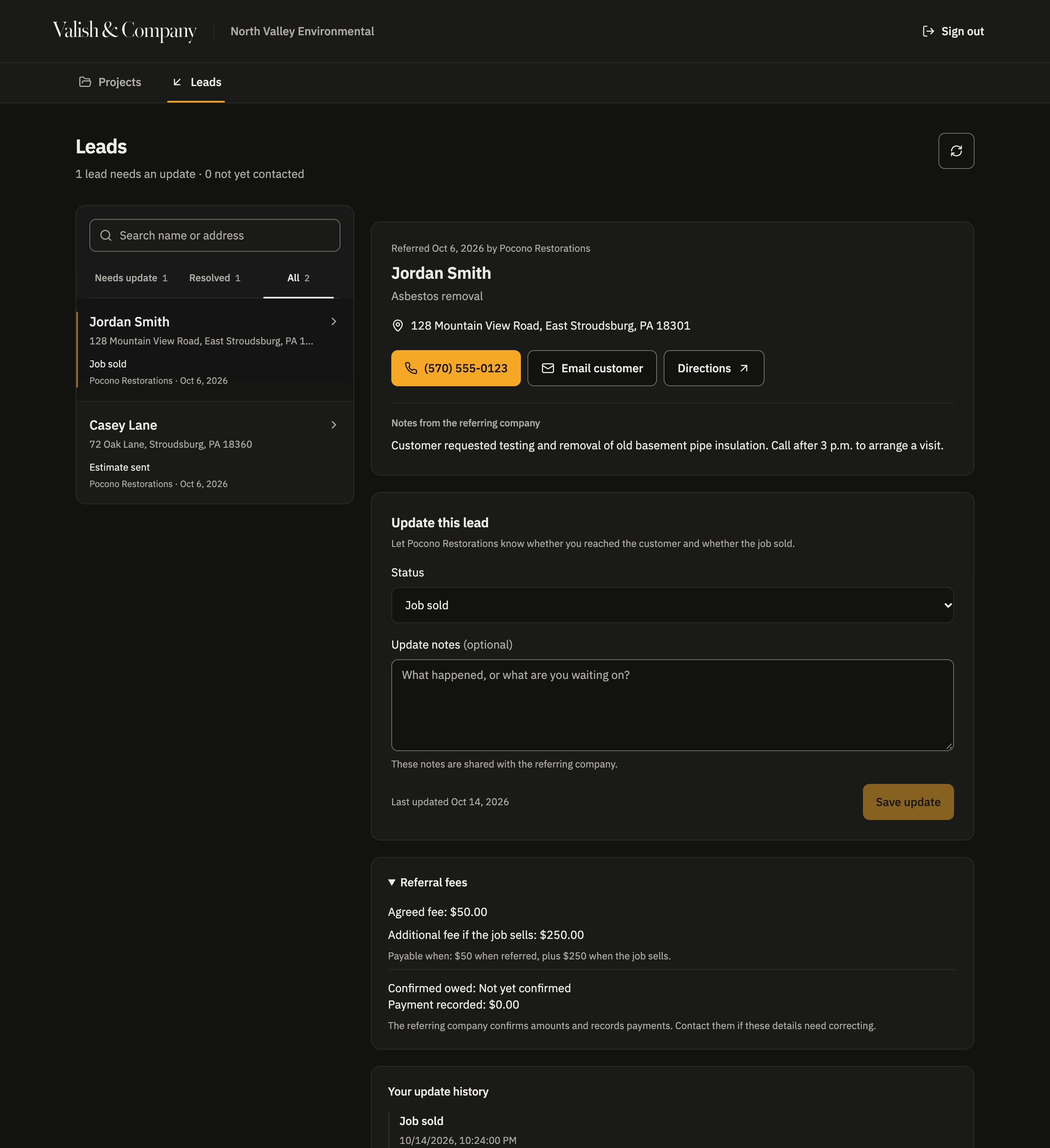
Open Leads for work we have sent to your company. Needs update shows active referrals requiring attention; Resolved shows completed outcomes and closed referrals; All includes both.
Find a received lead
Search by customer or address and open the lead.
Review the customer and requested work
Use the call, email, or directions links and read the shared instructions.
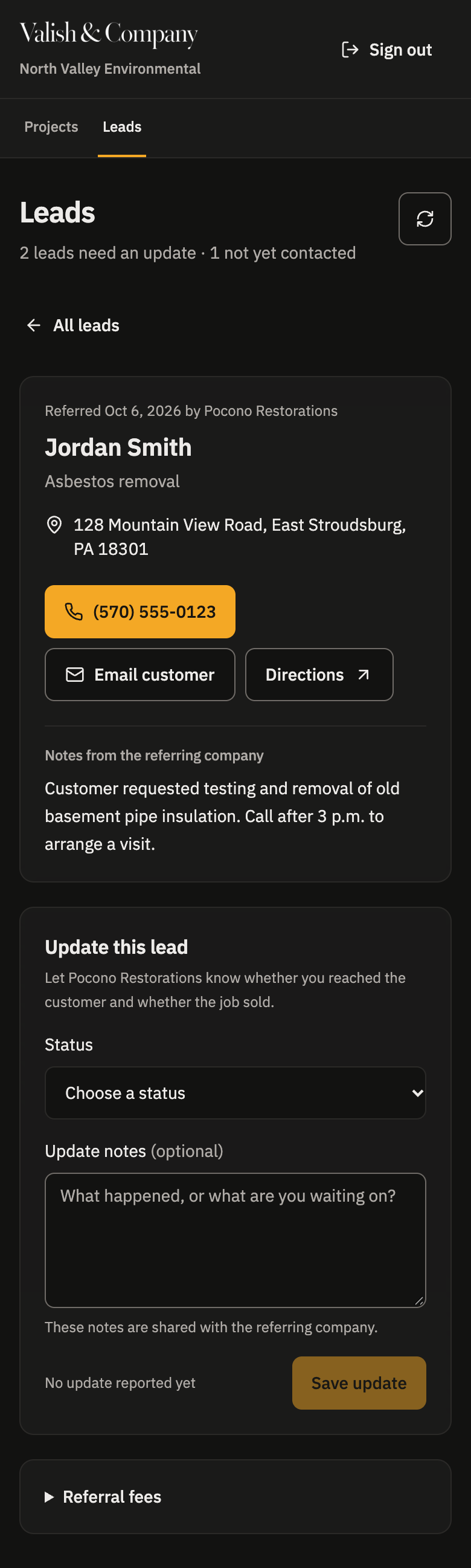
- Contact the customer and work the lead.
- Under Update this lead, select the current status, such as Contacted, Estimate sent, or Job sold.
- Add a relevant note and select Save update. The referring company can see your report.
- Check the saved history to confirm your update was recorded.
Send an outcome update
Keep notes relevant to the job and include only information you are authorized to share.
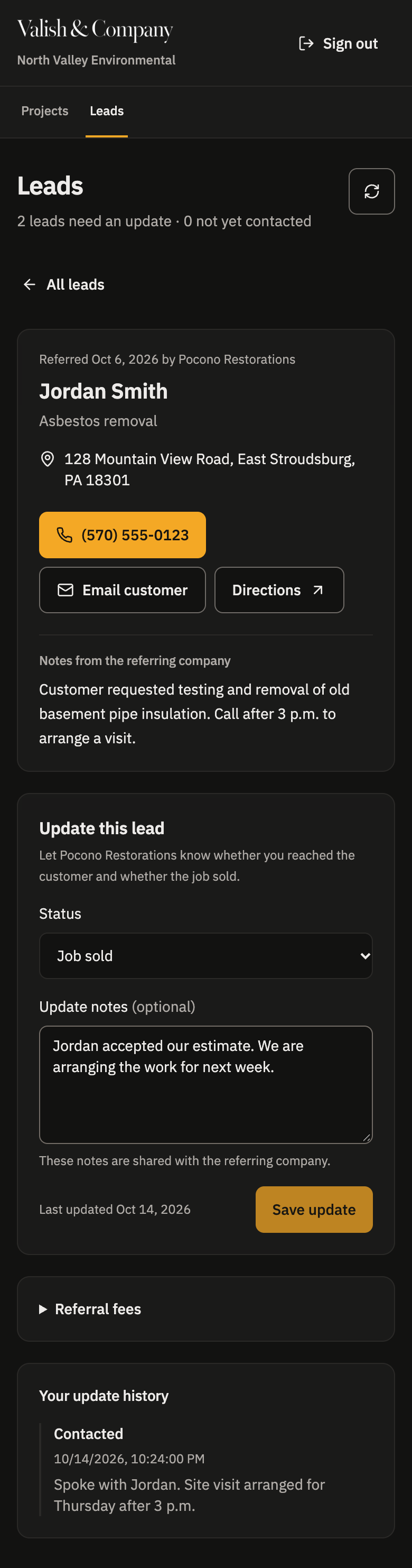
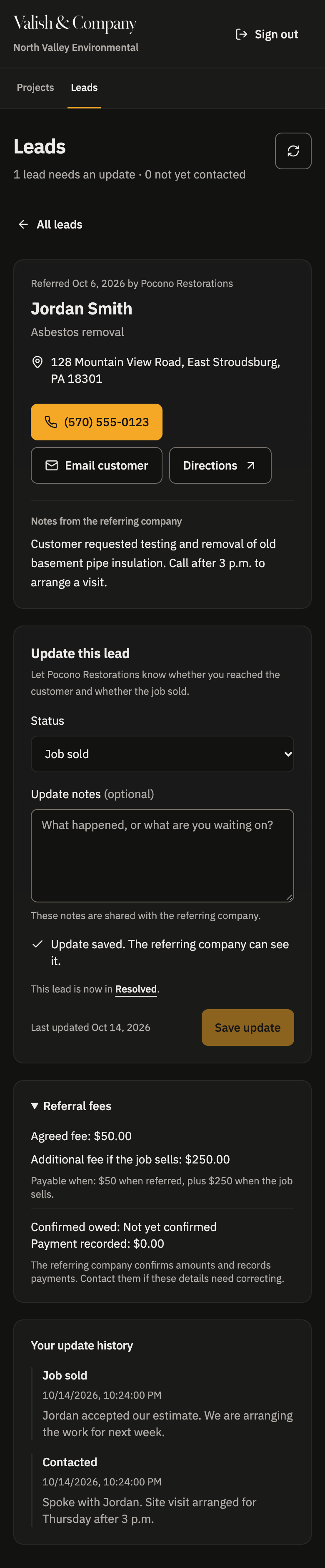
Review your history and referral terms
Saved reports stay visible alongside the referral agreement.
Leads on desktop
The list and selected customer appear side by side. On mobile, choose All leads to return to the list.
If saving fails, keep the page open and retry; your draft stays on that page. If your sign-in expires, sign in again in another tab, then retry. Closed referrals keep their history but cannot receive a new outcome update until the referring company reopens them.
Check referral fees
Expand Referral fees on a lead to review the agreed terms, confirmed amount owed, recorded payments, and remaining balance. These are separate from the status updates you submit.
Reporting Job sold does not charge anyone, confirm a fee, or record a payment. The referring company reviews the outcome and maintains those amounts under your agreement. Contact that company if a term, amount, or payment looks wrong.
Help and access
I cannot sign in. What should I do?
Use the exact email enabled by your project team. Check your spam folder and request a new code if the previous code expired. If you still cannot sign in, ask the project team to check your access and email address.
Why is a project, lead, or file missing?
You only see the businesses and work shared with your company. Incoming inquiries may not yet be projects, and only shared files appear. Contact the project team if you expected access. Removing access can make a previously visible item disappear.
Can I send you a new referral here?
Not currently. Contact your project team with the referral details. They will record the work and arrange access when it becomes a project.
Can I change project details or a saved report?
Project details are read-only. You can submit lead updates while a referral is open. Contact the referring company to correct a saved report, a project detail, or a fee.
What information is shared?
Projects show the shared status, schedule, messages, and eligible files. Leads include the customer contact details and referral terms you need to handle that work. Your lead updates are visible to the referring company. Use customer information only for the relevant work and keep it confidential. See the privacy policy and partner portal terms for details.
For questions about a job, use the company phone or email shown with the project or lead. For portal help, email info@valish.co or call (570) 213-9080.